Typing Posture: Correct Wrist Position and Setup
By Mark Fulton · · Updated
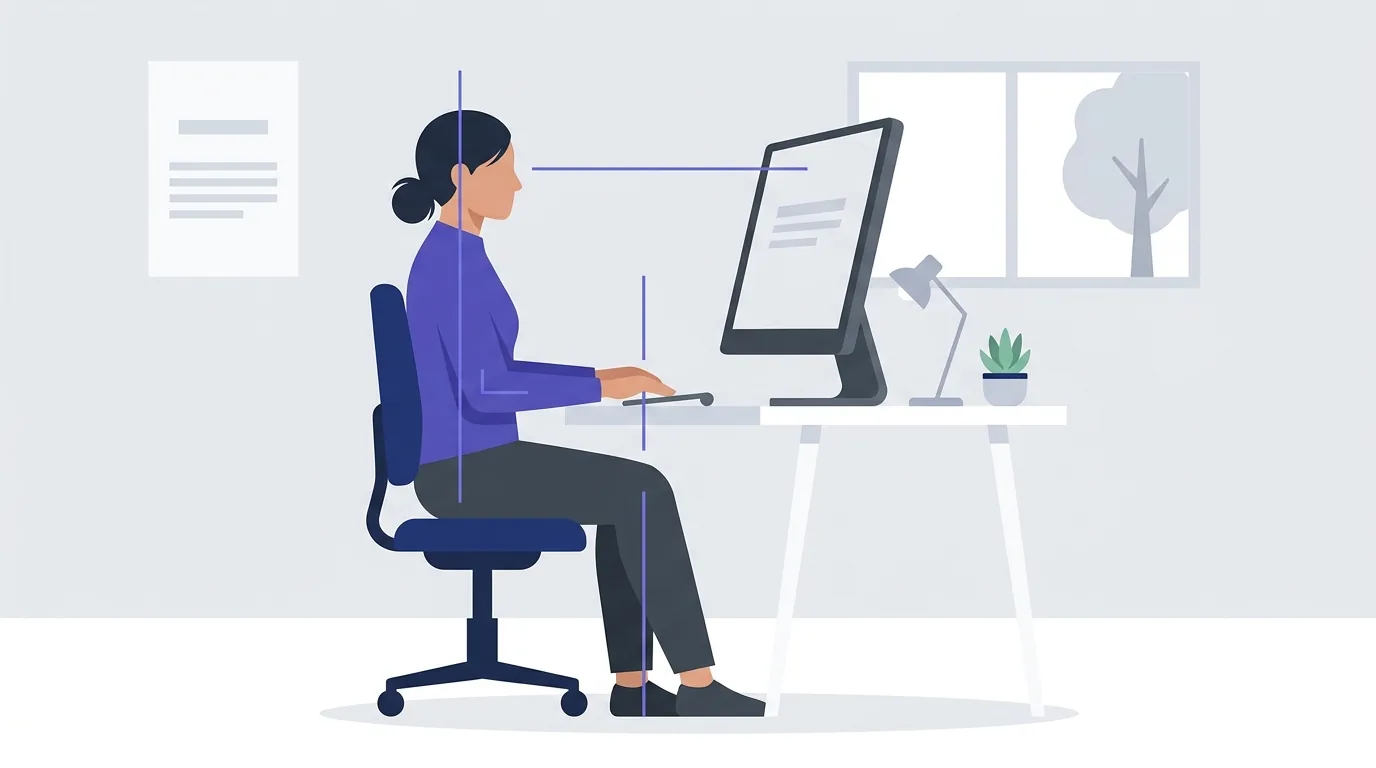
Good typing posture comes down to one idea: keep your joints close to their natural, relaxed position while your fingers do the work. In practice that means feet supported, back against the chair, shoulders loose, elbows close to your sides and bent a little past a right angle, forearms roughly parallel to the floor, wrists straight rather than bent up, down or sideways, and the top of the screen at or slightly below eye level. Most of that costs nothing to fix. It also matters for speed: a setup that tires you out shows up as a sagging line on a long typing test, well before it shows up as an ache.
This page is a setup guide, not medical advice. If you already have pain, numbness or tingling, the right move is a health care provider, and the last section explains where that line sits.
What does correct typing posture look like?
The most useful reference is OSHA's computer workstation guidance, which describes a neutral working posture at the computer joint by joint. Condensed into a typist's view:
| Body part | Neutral position | What drifting away from it looks like |
|---|---|---|
| Feet | Flat on the floor, or on a footrest if the desk can't be lowered | Dangling feet, perching on the front edge of the seat |
| Back | Supported by the backrest, upright or leaning back slightly | Hunched forward toward the screen |
| Shoulders | Relaxed, upper arms hanging naturally | Shrugged up because the keyboard is too high |
| Elbows | Close to the body, bent between 90 and 120 degrees | Arms reaching forward to a keyboard pushed too far away |
| Forearms, wrists, hands | Straight, in line, roughly parallel to the floor | Wrists cocked upward, or bent outward toward the pinky side |
| Head | Level, facing forward, in line with the torso | Chin jutting toward a low laptop screen |
Two details in that table matter more for typists than for general desk work.
The first is the wrist. OSHA's keyboard guidance warns specifically against wrists bending up or down or to the side while you type. The upward bend usually comes from a keyboard sitting too low relative to your elbows, or from flipping out the little feet on the back of the keyboard. The sideways bend comes from a standard keyboard being narrower than your shoulders, so your hands angle in to reach it.
The second is elbow angle. The 90 to 120 degree range is wider than the "exactly 90 degrees" rule you often see repeated. A slightly open elbow, with the keyboard a touch below elbow height, is fine and often more comfortable. Cornell University's ergonomics program goes further and describes the ideal as a keyboard below seated elbow height, tilted gently away from you, with a slightly reclined back.
Your fingers matter too. Curved fingers resting lightly on the home row, with the hands floating rather than planted, is the same position that makes touch typing work. Our guide to touch typing finger placement covers the hand side of this in detail.
How should your wrists be positioned while typing?
Flat and straight. Your wrists should sit in line with your forearms and the backs of your hands, neither raised and bent upward nor angled sideways, and they should float just above the keyboard instead of resting on it. If a multiple choice question offers "flat and straight", "raised and bent", "resting on the keyboard" and "hanging off the edge of the desk", the first one is the answer, and it is the position OSHA describes as neutral.
The same logic answers the other version of this question that shows up in computer classes and keyboarding quizzes: "when using a keyboard, your hands and arms should be in which position?" The answer is wrists in line with the backs of your hands, elbows bent at roughly a right angle with the keyboard pulled close to your body, and, if you use a wrist rest, the soft part of your palm or forearm resting on it between bursts of typing rather than the wrist itself.
A quick check you can do right now:
- Look from the side. A line from your elbow through your wrist to your knuckles should be close to straight.
- Look from above. Your hands should not angle outward toward the pinky side to reach the keys.
- Feel the underside. If a hard edge presses into the underside of your wrist while you type, your wrist is planted instead of floating.
- Check the keyboard feet. Folding them flat is the most common fix for wrists that bend upward.
The rest of this page covers the whole setup, because a good wrist position is usually a result of elbow and keyboard height rather than something you hold with effort.
Why do wrists hurt after long typing sessions?
Typing is a lot of repetition. OSHA's keyboard guidance notes that a proficient typist can easily exceed 18,000 keystrokes an hour, with none of the natural pauses that older typing work had built in. Every one of those keystrokes pulls tendons through the wrist.
When the wrist is straight, those tendons slide easily. When it is bent, OSHA describes them rubbing against bone and ligament, and the stretched and pinched tissue being more prone to irritation. Add a second source of pressure, a hard desk edge or a sharp wrist rest pressing into the underside of your wrist, and you have what ergonomists call contact stress.
So the common causes of sore wrists after a long session tend to be ordinary and fixable:
- A keyboard too low or tilted up, so wrists bend back for hours
- Hands angled outward to reach a narrow keyboard
- Wrists planted on the desk edge while typing, so the fingers reach by pivoting at the wrist
- Pounding keys to the bottom of their travel
- Long unbroken stretches with no change of position
It is worth being accurate about the bigger fear here. Carpal tunnel syndrome is the condition people worry about most, and MedlinePlus, the National Library of Medicine's health site, states plainly that researchers aren't sure whether long-term typing or computer use leads to carpal tunnel syndrome. Repeated hand motions are a listed risk factor, but so are wrist injuries, certain health conditions and family history. Good posture is about comfort and reducing strain. It is not a promise about any particular diagnosis, and wrist pain is not automatically carpal tunnel.
How does poor posture show up in your WPM curve?
This is the part posture guides skip, and it is the part a typing test can actually show you.
A one minute test barely touches posture. You can type in almost any position for sixty seconds, fresh and focused, and your score will reflect your fingers. Posture problems are cumulative. A shrugged shoulder or a bent wrist costs a little effort per minute, and that effort adds up. By the middle of a long session your muscles are working harder to hold a bad position, your rhythm gets uneven, and you start making more corrections.
That is why a long test is the honest measure. The 10 minute typing test samples your speed every second and draws it as a graph at the end: a faint line for your per second pace and a solid line for your running average. What to look for:
- A steady average line that stays flat after the first minute or so. Your setup is not fighting you.
- An average that sags through the middle and never recovers. Common with shoulders held up by a high keyboard or a back that has drifted off the chair.
- A per second line that gets ragged in the second half, with bigger dips as time goes on. That pattern usually means rising errors and more backspacing, which is what tired, tense hands produce.
- A lower consistency score than on your short tests. The results screen reports consistency alongside WPM and accuracy, and it drops when your pace becomes erratic.
Some fade over ten minutes is normal for everyone, because attention drifts too. The point is not to reach a perfectly flat line. It is to compare your own line before and after a setup change, on the same test length, and see whether the fade got smaller. If you want the background on why short and long tests diverge in the first place, see 1 minute vs 5 minute typing tests.
What desk adjustments cost nothing?
Almost everything that matters is an adjustment, not a purchase. Here is the setup in the order that works, because each step depends on the one before it. It takes about two minutes.
The 2-minute desk setup sequence
- Chair (30 seconds). Sit all the way back so the backrest supports your lower back. Set the seat height so your feet rest flat on the floor with the back of your knee not pressed against the seat edge. If your chair has no lumbar support, OSHA suggests a rolled up towel as a stopgap.
- Elbows (20 seconds). Let your upper arms hang loose at your sides and bend your elbows to somewhere between 90 and 120 degrees. Note where your hands end up. That height is your keyboard target.
- Keyboard and wrists (30 seconds). Move the keyboard directly in front of you and close enough that your elbows stay by your sides. Bring its home row to roughly the height your hands landed in step 2. If you had to raise the chair to get there and your feet no longer reach the floor, use a footrest or a sturdy box. Fold the keyboard's rear feet away if they bend your wrists upward. Then check your wrists: straight from forearm to knuckles, not cocked up, not angled out.
- Screen (20 seconds). Put the monitor directly in front of you. OSHA's monitor guidance puts the top line of the screen at or below eye level and the screen at least 20 inches away. On a laptop, a stack of books under the laptop plus a separate keyboard fixes the most common neck problem in one move.
- Breaks (20 seconds, then ongoing). Decide now when you will stop. OSHA's keyboard guidance suggests frequent short pauses and a five minute break from computer work every hour: look away, stretch, stand up, walk.
Two free habits round it out. Type lightly, since keys register well before the bottom of their travel. And change position through the day. OSHA's guidance is explicit that even a good posture held without moving for hours is not healthy, so small shifts, standing for some tasks and short walks all count.
When is equipment worth it, and when is it a professional's call?
Equipment is worth it when an adjustment can't solve the geometry.
- A keyboard tray or adjustable desk when your desk is too high and raising the chair would leave your feet dangling or your thighs jammed under the desk.
- A separate keyboard and a laptop stand if you type on a laptop for hours. You cannot get the screen and the keyboard right at the same time when they are joined.
- A footrest when the chair has to go up to meet the desk.
- A split or alternative keyboard if you consistently angle your hands outward. Be realistic about what it buys you: OSHA notes that alternative keyboards help keep wrists neutral, but that available research does not conclusively show they prevent discomfort or injury. They also take time to get used to.
On hardware and speed more generally, the keyboard itself matters less for WPM than most people assume. We looked at the evidence in mechanical vs membrane keyboards.
Then there is the line this page will not cross. Setup changes are for comfort and fatigue. Symptoms are for a professional. Stop and talk to a health care provider, rather than adjusting your desk and pushing on, if you notice:
- Numbness, tingling or burning in your fingers, especially the thumb, index and middle fingers
- Symptoms that wake you at night
- Weakness, dropping things, or trouble gripping small objects
- Pain that persists after rest or keeps returning
- Swelling, or pain from an injury
MedlinePlus notes that carpal tunnel syndrome is easier to treat early, which is a good reason not to wait. An ergonomics specialist, occupational therapist or physical therapist can assess your actual workstation, which no general guide can do.
Frequently asked questions
Should wrists rest on the desk while typing?
Not while you are actively typing. OSHA's guidance on wrist and palm supports says your hands should move freely and float above the rest while you type. Planting your wrists and pivoting to reach keys bends the wrist and loads the underside of it with contact pressure, especially on a hard desk edge. Resting between bursts is fine. When you pause, let the heel or palm of your hand settle, not the wrist itself.
Can typing posture affect speed?
Yes, mostly over time rather than instantly. Posture barely changes a one minute score, because you can hold almost any position for sixty seconds. Over a long session, a setup that makes you hold tension leads to fatigue, a more uneven rhythm and more errors, and that shows up as a sagging WPM line and a lower consistency score. A 10 minute test before and after fixing your setup is the cleanest way to see the effect for yourself.
Are wrist rests good or bad?
They are neither by default; it depends on how you use one. OSHA reports that proper use has been shown to reduce muscle activity and help keep wrists neutral, while resting the wrist on a support during typing can restrict motion and increase awkward bending. The practical rule: use the rest during pauses, keep your hands floating while typing, and choose one that is soft and rounded with no hard front edge, matched to the height of your keyboard's front edge.
How often should you take typing breaks?
OSHA's keyboard guidance recommends building frequent short micro pauses into your work and taking a five minute break from computer tasks every hour: look away from the screen, stretch, stand up or walk. Short, regular breaks beat one long break at lunch, because they interrupt the repetition before fatigue builds. If you are practising typing, the same logic applies between tests.
Here is the test that makes this concrete. Run a 10 minute typing test on your current setup and screenshot the WPM over time graph. Then work through the 2-minute sequence above, give yourself a day or two to get used to it, and run the same test again. Your results history keeps the WPM, accuracy and consistency from both runs on your device, and the two graphs side by side will show you whether your fade got smaller.